
We’ve all been there: buffering videos, slow downloads, and those annoying Wi-Fi signal drops right when you need it the most. It’s frustrating, right? Well, the good news is that most of these issues can be solved with a few tweaks to your home Wi-Fi setup. And no, you don’t need to be a tech expert to do it! Let’s break it down together with simple, actionable tips to get your Wi-Fi running at its best.
1. Place Your Router in the Right Spot
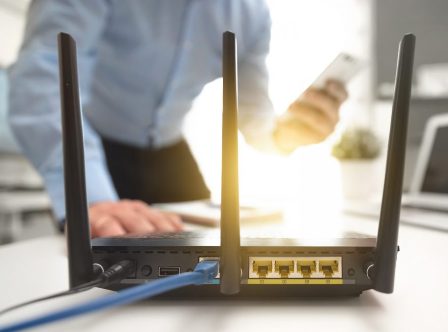
It may sound obvious, but the location of your router is crucial. If your router is tucked away in a corner, hidden behind furniture, or buried in a cupboard, that’s probably where your Wi-Fi issues begin. Seriously, a few feet can make a big difference.
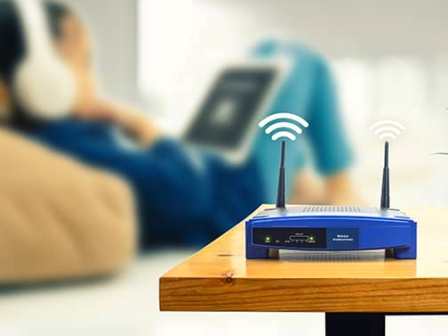
Place your router in a central location, preferably elevated (like on a shelf) and not too close to walls or metal objects that could block the signal. I’ve seen huge improvements just by moving it out of a cabinet and onto a table.
2. Use the Right Frequency Band
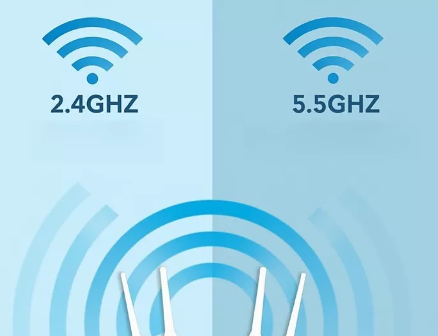
Most modern routers offer two frequency bands: 2.4 GHz and 5 GHz. Here’s the deal: 2.4 GHz is slower but covers a larger area, while 5 GHz is faster but has a shorter range. So, if you’re sitting right next to the router, go for the 5 GHz band. But if you’re farther away, 2.4 GHz might be your best bet for a stable connection.
Personally, I’ve found that switching to 5 GHz for my laptop made a massive difference in streaming quality. If you have multiple devices, you can also set them to automatically choose the best band.
3. Change Your Wi-Fi Channel
Wi-Fi channels are like lanes on a highway—too many cars in the same lane cause traffic. In dense areas (like apartment buildings), a lot of people might be using the same channels, causing interference. The good news is you can change the channel on your router, and it’s surprisingly simple.
Most routers are set to auto-select a channel, but this doesn’t always mean you’re on the best one. You can use apps like Wi-Fi Analyzer (for Android) to check the least crowded channel in your area and set your router to use it. This can give you a noticeable boost in speed.
4. Secure Your Network
Here’s a big one: make sure your network is secure. If your neighbors are using your Wi-Fi, it’s going to slow down for everyone. It’s not just about speed, though—it’s about protecting your privacy. Change the default router password, and use WPA3 encryption if your router supports it.
Speaking from experience, the moment I changed my password from the default one, the connection felt much faster. And let’s be honest, it’s not worth risking someone leeching off your bandwidth (or worse, your personal data). A strong password is key.
5. Update Your Router’s Firmware
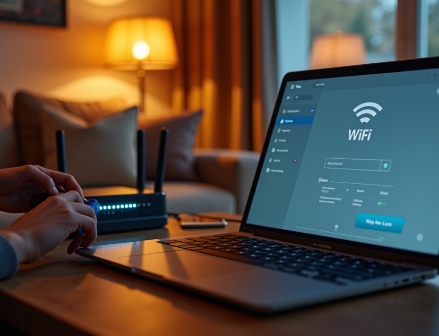
It might seem like a hassle, but updating your router’s firmware can actually improve performance and fix bugs that could be causing connectivity issues. Manufacturers often release updates to enhance security or boost the router’s efficiency.
To be honest, I often forget this step until something goes wrong, but when I remember, it’s usually the solution. Check your router’s settings to see if there’s an available update—it only takes a couple of minutes and can make a world of difference.
6. Limit the Number of Devices Connected
Too many devices using the same Wi-Fi network can slow things down, especially if you’ve got a lot of smart devices like security cameras, thermostats, or gaming consoles. Try limiting the number of devices connected at once, especially for high-bandwidth activities like streaming or gaming.
I realized this when I was streaming a movie while my roommate was gaming on his console. The lag was real! By disconnecting a couple of devices, we both saw a huge improvement in speed.
7. Consider a Mesh Wi-Fi System
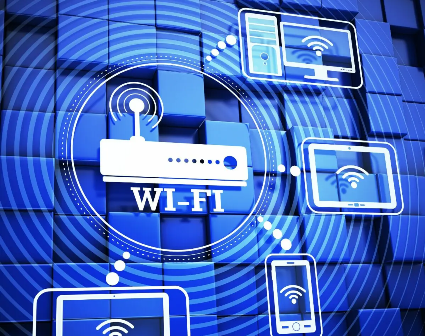
If you’ve tried everything and your Wi-Fi still isn’t reaching all corners of the house, it might be time to consider a mesh Wi-Fi system. These systems use multiple devices that communicate with each other to create a seamless network across your home, ensuring there’s no dead zone.
Mesh systems are particularly useful for large homes or multi-story buildings. Trust me, once you go mesh, you’ll wonder why you didn’t make the switch sooner.
8. Check for Interference from Other Electronics
Did you know that certain household electronics can interfere with your Wi-Fi signal? Microwaves, baby monitors, cordless phones—these can all cause disruptions in your network. If possible, move these items away from your router.
It’s a small thing, but I’ve found that moving my router away from the microwave made a surprising difference. My connection became more stable, especially when I was on video calls.
Conclusion
Optimizing your home Wi-Fi doesn’t have to be complicated. By following these simple tips, you can drastically improve your connection and get the most out of your internet. So, what’s the first step you’re going to take? Will you move your router, update the firmware, or try a mesh system?
Remember, a little effort goes a long way, and the difference in speed and stability will be well worth it!